

Photography art demands one essential element—precision. Producing polished photos that genuinely resonate, Adobe Lightroom is a name that echoes across the industry. With its legacy of excellence in photo editing and organization, Lightroom is a go-to tool for photographers and content creators.
Winning the prestigious Mac App of the Year 2024 award further solidifies its position as a key player in modern photography workflows. But what exactly makes Lightroom stand out, and is it the right fit for your needs? Find out more in this Lightroom review from the eyes of a travel photographer. You see what I did in the title?
Lightroom Review | Introduction

Adobe Lightroom, launched in 2017, has evolved into one of the most comprehensive tools for professional photographers and content creators. Designed for both beginners and experts, Lightroom offers not just editing tools but also advanced organizational capabilities.
Whether working on a portfolio, curating content for social media, or delivering client-ready photos, Lightroom has streamlined countless workflows for industry professionals.
In this Lightroom review, we’ll discuss the new, cloud-based Lightroom CC, which is different from Lightroom Classic, which was released in 2007. More on this later.
Key Features and Tools

Photo Editing
Lightroom excels at editing, with its tools ranging from basic adjustments like exposure and contrast to more advanced features such as color grading and AI-based enhancements like Denoise. Sliders make these capabilities approachable, even for newcomers.
Whether it’s recovering details in shadows or fine-tuning colors, Lightroom’s adjustments are as precise as they are effective.

Organization
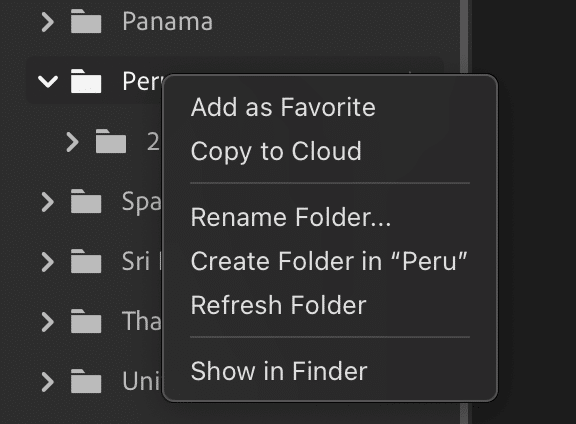
What sets Lightroom apart is its ability to organize photos seamlessly. Features like keyword tagging, ratings, and face recognition simplify managing large libraries. Lightroom Classic focuses on local storage, while the Creative Cloud (CC) version thrives on cloud syncing, offering flexibility across devices.
Sharing Made Simple
From one-click export options to easy integration with social media platforms, Lightroom makes sharing your photos remarkably simple. This feature has become a favorite among Instagram content creators who need perfectly edited and eye-catching visuals with minimal hassle.

Mobile vs Desktop Versions
Lightroom has two main forms: Mobile and Desktop. The Mobile app is a favorite for editing on the go, bringing nearly all of the desktop version’s features right to your fingertips. Professionals who value portability without sacrificing quality are particularly drawn to its performance.
The real magic lies in the integration between these versions. Thanks to Adobe’s cloud storage infrastructure, edits made on the mobile app can be instantly accessed on the desktop and vice versa.
Whether you’re tweaking photos in a café or sitting at your home studio, Lightroom ensures your workflow remains uninterrupted.
Lightroom vs Lightroom Classic
A recurring question among users is whether to opt for Lightroom or Lightroom Classic. Here’s a quick summary:
- Lightroom (CC) primarily targets photographers who prioritize ease and mobility. Its cloud-based system allows seamless access across devices, but it limits control in areas like file handling and detailed adjustments.
- Lightroom Classic is tailored for professional photographers seeking maximum control. It offers advanced organizational tools and more robust capabilities. However, its desktop-first design may not appeal to users needing portability.
For those who thrive on advanced edits and large-scale organization, Lightroom Classic is the go-to. But if your life is on the move, Lightroom CC delivers exceptional flexibility.
Furthermore, the cost of a Lightroom subscription with the Adobe Photography Plan includes both versions of Lightroom. You’ll be able to try out both versions at the same price and for free for the first 7 days.
User Experience
If there’s one thing Adobe understands, it’s interface design. Lightroom’s workspace is intuitive and visually clean, catering to users with varied experience levels. Here’s how:
- For Beginners: The guided setup and slider-friendly controls make learning feel less intimidating.
- For Professionals: Advanced tools like AI masking and custom presets speed up workflows significantly.
A high point for content creators is how easily Lightroom fits their needs, especially when paired with platforms like Instagram. With features for batch edits and exporting optimized files, it’s no wonder Lightroom has become a social media staple.
What Reddit Says
The Reddit community remains divided yet largely positive about Lightroom.
For instance, users like GenghisFrog, a photography hobbyist, appreciate Lightroom’s modern design and cloud sync features over Lightroom Classic. Yet, they do mention it makes sense for the pros to use Lightroom Classic.

Others value Classic’s sophistication but wish its interface felt less outdated. Common compliments include Lightroom’s flexibility and cloud integration, with minor gripes about pricing and occasional UI inconsistencies.
User “deleted” pointed out they simply turned off cloud features in CC when it didn’t suit them, reflecting the platform’s adaptability.
Pricing and Plans
Lightroom is offered exclusively through subscription plans. The two primary pricing tiers include:
- Photography Plan ($9.99/month): Includes Lightroom (Classic and CC), Photoshop, and 20GB of cloud storage.
- Lightroom Plan ($9.99/month): Features Lightroom CC and 1TB of cloud storage for those who prioritize cloud syncing.
Both plans offer incredible value for what they deliver. Adobe frequently runs discounts for first-time subscribers, so keep an eye out for promotions.
Comparing Lightroom with Competitors
Lightroom dominates, but how does it stack up against close contenders?
- Capture One: Probably the best Lightroom alternative to the Classic version, C1 is used by professional photographers and studios for fashion and portrait shots. It’s also backed by Phase One, you know, the guys that make those $50,000 cameras.
- Luminar Neo: Renowned for AI image editing and making your photos pop in a few seconds. It’s excellent for photographers and creators who don’t want to spend too much time editing or learning photography software.
- DxO PhotoLab: Exceptional in image correction but trails Lightroom in file organization and cloud support. The good news is you can buy their software outright with a perpetual license.
- ON1 Photo RAW: Offers flexibility, yet it doesn’t feel as polished or lightweight as Lightroom. However, the software costs less than $100, and there are many tutorials on YouTube for learning Photo RAW.
While alternatives exist, few match Lightroom’s blend of accessibility, functionality, and cross-platform usability.
Final Thoughts
Adobe Lightroom continues to stand as a titan in photo editing software. From beginner photographers to seasoned professionals, its rich features and seamless usability cater to a wide range of needs. Whether you’re looking to transform your photography or simplify your editing process, Lightroom offers tools to make it happen.
Frequently Asked Questions
Can you buy Lightroom outright?
No, you can’t buy Lightroom outright. Adobe currently doesn’t support the perpetual license model, and both Lightroom versions require a subscription. The last time any version of Lightroom was available to be bought outright was Lightroom 6 back in 2015.
Should I use Photoshop or Lightroom?
Use Lightroom image enhancement and quick fixes while editing remotely. Photoshop is better for detailed manipulations and layered projects. Furthermore, Photoshop’s learning curve is weeks to months. I’m still learning new things from Photoshop as they keep making updates.
Is Lightroom worth it?
Even though you can’t buy Lightroom outright, this photography software offers a lot of value to photographers and content creators with its mobile apps and includes the Photoshop app, so it’s definitely worth it.