

Last updated on December 6th, 2024 at 10:50 am
Creating the perfect photograph has become simpler with the help of powerful editing software like Adobe Photoshop. Whether it’s an unexpected photobomber or an unwanted object overshadowing the beauty of a landscape, removing them can be a game-changer for enhancing your images.
However, many find the process intimidating or assume it requires expert-level skills. In this blog post, you learn how to easily remove people, objects, or whatever other things that are ruining your photos.
I’ll assume you already have the latest version of Photoshop CC. It now includes Generative AI erasing, which uses preexisting data to clean up your image with better precision.
How to Remove People and Objects Using Photoshop’s Remove Tool

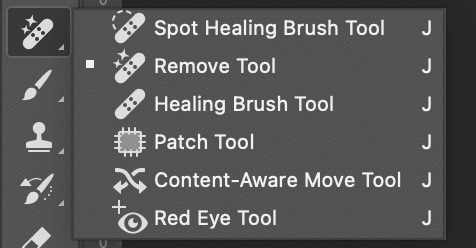
Photoshop has several clean-up tools. However, when you’re erasing people or items from your photos, the main tool you want to use is the Remove Tool.
The Remove Tool uses Generative AI automatically to retouch your image with improved efficieny.
Follow these steps to remove people and objects:

1. Open your image in Photoshop.
2. Make sure your image layer is selected and unlocked so you can edit the image.. You can unlock it by clicking on the lock icon.

3. Select the Remove Tool from the left-hand side of the Photoshop interface. It looks like a band-aid. Your mouse cursor should change to a circular brush.
4. Change the brush to an appropriate size. Usually the short-end width of the object you’re removing. You can use the keyboard shortcuts [ and ] to increase and decrease the size.

5. Paint over the areas you want to clean up. You can also use the people tool to automatically select people.

6. Photoshop was easily able to remove the people, cards, and other unwanted things from the foreground.

Related: How to Remove People in Lightroom
How to Remove Anything in Photoshop Express Mobile
In Photoshop Mobile, also called Photoshop Express, you can just about remove anything from your photos. The mobile apps for Android and iOS also have Generative AI.
The process to erase people or objects in Photoshop Mobile is similar to the desktop version. You need to click on the heal tool and then select the Remove Objects AI tool.

Related: How to Get Photoshop on a MacBook